Download the latest Orbtile disk image from the download page. Orbtile is notarised by Apple, so macOS asks only once before it opens; the steps are below.
First open steps
Orbtile is signed with an Apple Developer ID and notarised by Apple, so macOS opens it like any other app. Each computer gets a 15-day trial; after it, a licence key keeps Orbtile running.
Open the disk image from your Downloads folder.
Drag Orbtile into your Applications folder, then open it from there.
macOS asks whether you want to open an app downloaded from the internet: click Open. Orbtile opens.
If Orbtile is already in Applications and won’t open, run xattr -dr com.apple.quarantine /Applications/Orbtile.app in Terminal, then open it again.
macOS version
Orbtile requires macOS 14.0 Sonoma or later running on Apple silicon (M1 or later).
The keypad
Connect your Logitech MX Creative Keypad to your computer using its USB-C cable.
Orbtile uses the nine LCD keys and two page buttons of the keypad over USB HID.
Logi Options+ is not required: Orbtile drives the keypad over USB by itself. If Options+ is installed, it stays installed on your computer.
While Orbtile is in control, your Options+ profile for the keypad pauses.
Options+ gets the keypad back immediately whenever you quit Orbtile, choose Release keypad in the menu bar, press the shortcut Control-Option-Command-K, or hold both keypad page buttons for 1.5 seconds.
macOS may need you to allow Orbtile in System Settings > Privacy & Security > Input Monitoring. Then quit and reopen Orbtile.
Setup
Install on Windows
Download
Get Orbtile from the Microsoft Store with the Download from the Microsoft Store button on the download page, or download the installer (MSI) there. Orbtile runs on a Windows 11 PC (x64).
First run steps
From the Microsoft Store, the Store page downloads a small setup file: open it from your Downloads folder to install Orbtile. Installed this way, Orbtile updates through the Microsoft Store. Each computer gets a 15-day trial; after it, a licence key keeps Orbtile running.
The installer (MSI) is signed with Orbtile’s own certificate, so Windows SmartScreen stops it until you allow it:
Open the installer from your Downloads folder. It installs Orbtile for your Windows user only, so it needs no administrator rights.
When Windows shows Windows protected your PC, click More info, then Run anyway.
Follow the installer, then open Orbtile from the Start menu. Orbtile runs in the system tray.
Windows can show the same SmartScreen dialog again when you install a newer version.
The tray
On Windows, Orbtile's menu and popover open from its icon in the system tray; on a Mac they open from the menu bar. Settings follows the same naming, for example Waiting in the tray. The shortcuts are Ctrl+Alt+Win+K to switch the keypad between Orbtile and Options+, and Ctrl+Alt+Win+O to open the Orbtile menu.
Phone pad and the firewall
The first time the phone pad starts, Windows asks to allow Orbtile on networks. Click Allow so your phone can reach your PC. If you clicked Cancel, allow Orbtile in Windows Security > Firewall & network protection > Allow an app through firewall.
Orbtile Mobile for Android
Orbtile Mobile for Android turns an Android phone into the status pad for your coding agents, next to your Mac or Windows PC running Orbtile.
15-day trial. Needs an Apple silicon Mac (macOS 14+) or a Windows 11 PC (x64), plus an Android phone (Android 8.0+) with Orbtile Mobile or a Logitech MX Creative Keypad.
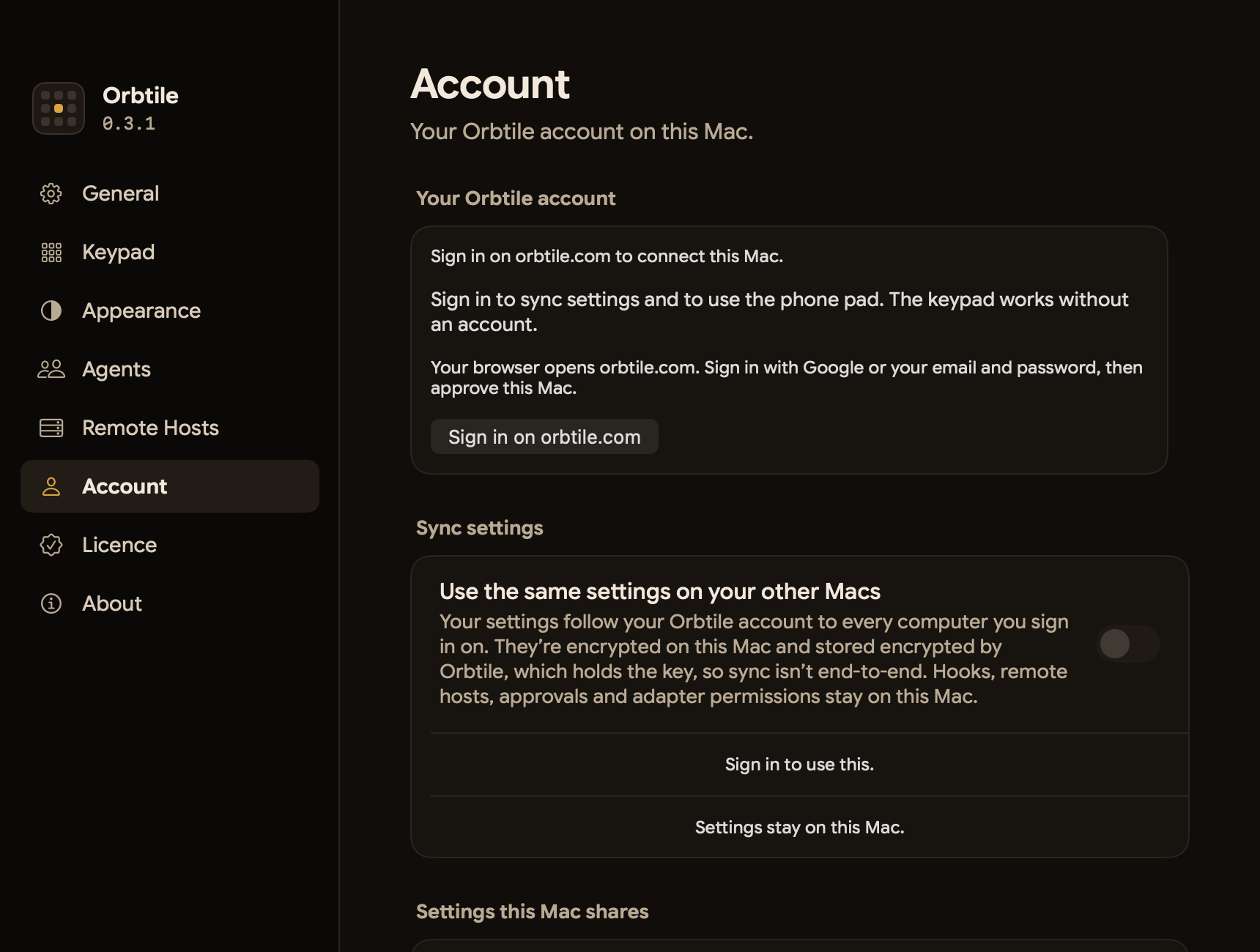
The keypad needs no account: from 0.2.11, Orbtile works without signing in. Orbtile Mobile needs one: sign in with the same account on your computer and your phone. Sign in also for encrypted settings sync between your computers. Updating or signing in keeps this computer’s saved settings.
Open Orbtile’s menu, choose Settings, then Account.
Choose Sign in on orbtile.com. Sign in with Google or your email and password. Google creates an account on your first sign-in; email registration requires verification.
On the page opened by Orbtile, check the computer name and version. Choose Connect this computer only for a request you started.
Return to Orbtile. One account connects as many computers as you like, Mac or Windows.
If you register with email, verify it first, then return to the page opened by Orbtile to sign in and connect this computer. A request expires after 10 minutes. Start sign-in again in Orbtile if yours expires. If your browser sign-in is too old to approve a computer, sign out and sign in again on that page.
A computer sign-in lasts 30 days from when you sign in, online or offline. From 0.2.11, a computer renews its sign-in while it is online, so it is not asked to sign in again every 30 days. Encrypted sync requires a freshly verified online account.
Share settings when you choose
Sync settings lives in the Account tab. Turn it on and your settings follow your Orbtile account to every computer you sign in on; from 0.2.17 there is no code to enter. Settings are encrypted before upload, but Orbtile holds the key, so sync is not end-to-end (see the privacy notice).
Choose which look, keys and sessions, and menu bar settings to share. Hooks, hosts, approvals, adapter permissions, licences and automation permissions stay on each computer. Orbtile Enterprise has no sync; use Export and Import.
After an update
From 0.2.12, Orbtile keeps its account and sync information in private files instead of the login Keychain, so updates no longer ask for your Keychain password. The first launch of 0.2.12 asks once more to move what earlier versions saved; if you cancel, you stay signed out until the next launch asks again. Updating or signing in does not reset your saved settings.
Integration
Connect your agents
Claude Code
Install the Orbtile plugin from the app in Settings > Agents > Claude Code or during onboarding.
The plugin registers 18 hooks that stream session events and live typewriter text over a private local Unix domain socket on your Mac.
If you have Claude Code sessions running before installing or updating the plugin, restart them once in Claude Code so they load the plugin.
Nothing to install: Orbtile reads Codex thread files and Codex's own signals for session state, tool labels, waits and assistant text. Desktop threads, terminal codex sessions and codex exec runs show as Codex, even when launched from another agent. Assistant text comes from the thread files.
Extra: Codex hooks. The hooks are optional: they add a compacting state and slightly earlier updates. Choose Install in Settings > Agents > Codex only if you want those extras. Orbtile adds 12 hook events to your Codex hooks file.
If you install them, open Codex > Settings > Hooks, review the 12 Orbtile hooks, and trust them. Changed hooks need review again; Orbtile never trusts hooks for you. Reinstall and Remove remain available in Settings > Agents > Codex.
The keypad can send offered Codex desktop command approvals and supported multiple-choice questions. Terminal command approvals offer Allow only; to decline one, answer in the terminal. Other terminal requests and unsupported requests say Answer on computer. No hook is involved. See Approve from the keypad for settings and the Codex caveat.
ZCode display needs nothing installed: Orbtile opens its task databases read-only. For keypad decisions, Orbtile adds one approval hook.
Orbtile reads task state directly from ZCode database files on your computer, so starting a task in ZCode automatically assigns it a key.
Kimi Code
Nothing to install. Sessions come from Kimi Code's files on this computer, with live text. A tap brings the session's terminal or Kimi window to the front.
Keypad answers work for sessions in Kimi's own server: start kimi web or kimi rc, or type /rc in a Kimi terminal session to hand it over. Other Kimi sessions show their state, and you answer them on the computer. Kimi's server API is experimental: if a Kimi update changes it, keypad answers stop until Orbtile catches up, and sessions still show.
Extra: Kimi Code hooks. Hooks are optional: they add a compacting state and slightly earlier updates. They never approve or deny anything. Session state and text already work without them.
Other agents: Adapter API
Orbtile has an open, local Adapter API (protocol v1, in preview). Any agent or script can show its sessions on the keypad through it. It talks to Orbtile over a Unix socket on a Mac and over a loopback port (127.0.0.1) on Windows, so only programs on this computer can reach it.
The API is off by default. In Settings > Agents, choose Build your own, then turn on Let your own tools show sessions.
A newly registered agent stays hidden (off the keypad and out of the menu) until you allow it in Settings > Agents. See the Adapter API reference.
Files and permissions
What Orbtile installs and reads
Choose each integration in Settings > Agents. Turning an agent off stops its tracking; it does not uninstall its plugin or hooks.
Local hooks and adapters talk to Orbtile through its private ~/Library/Application Support/Orbtile/run/hooks.sock socket, with $TMPDIR/orbtile/hooks.sock as a fallback for long paths; there is no network listener. ZCode display reads local files without a hook.
Claude Code
Installs and writes: The orbtile@orbtile plugin, its hooks, scripts and curl configs in ~/Library/Application Support/Orbtile/claude-plugin/, registered through Claude's CLI. If CLI registration fails, Orbtile edits ~/.claude/settings.json with a dated settings.json.orbtile-backup-… backup.
Reads: Session records, transcript tails and subagent metadata under ~/.claude, plus Claude desktop session descriptors in ~/Library/Application Support/Claude/claude-code-sessions, for local display; these session files are not edited. CLAUDE_CONFIG_DIR overrides the Claude config folder.
Turn off or remove: Switch Claude Code off in Settings > Agents to stop tracking; use its Remove button to unregister the plugin and remove Orbtile's fallback settings entries. Generated files and backups can remain.
Codex
Optional installs and writes: When you opt in, Orbtile merges its entries into ~/.codex/hooks.json, keeping an existing file as hooks.json.orbtile-bak, and writes bin/orbtile-codex-hook and codex-hooks/ curl configs inside its Application Support folder. Review and trust new hooks in Codex Settings > Hooks; changed hooks need review again. Integration repair upgrades old holding helpers; PermissionRequest returns immediately without a decision.
Reads:state_<N>.sqlite databases opened read-only, rollout JSONL tails, session_index.jsonl and external_agent_session_imports.json under ~/.codex, plus hook config for integration status and current native waiting metadata from the already running terminal engine and Codex desktop app. Desktop snapshots transiently include the whole conversation; only pending request metadata and runtime status are retained. CODEX_HOME overrides this folder.
Turn off or remove: Switch Codex off in Settings > Agents to stop tracking; Remove removes Orbtile's hook entries and helpers while keeping other hooks and the backup.
ZCode
Reads: Task state, titles and latest assistant text from ~/.zcode/cli/db/db.sqlite and ~/.zcode/v2/tasks-index.sqlite, opened read-only. ZCODE_STORAGE_DIR overrides the stores folder.
Keypad decisions: Orbtile adds one hook to ~/.zcode/cli/config.json and enables ZCode hooks, including project hooks subject to ZCode's trust prompt. Orbtile writes bin/orbtile-zcode-hook, zcode-hooks/PermissionRequest.curl and private zcode/original.json and zcode/config.json.bak files in its Application Support folder; the stores override does not relocate the config.
Turn off or remove: Switch ZCode off in Settings > Agents to stop tracking. The keypad hook stays in ZCode's settings file; Orbtile keeps a backup of the original. Orbtile reads this config to keep its keypad hook in place.
Codex and ZCode database handles are read-only; SQLite may recreate a missing -shm sidecar for an existing write-ahead log.
Kimi Code
Reads: The session index session_index.jsonl, and for each session its state.json and the last 2 MiB of its main wire log agents/main/wire.jsonl, in sessions/<id>/ or, in current Kimi Code versions, sessions/wd_<folder>_<hash>/<id>/, all in ~/.kimi-code (%USERPROFILE%\.kimi-code on Windows), for each session's state and live text. KIMI_CODE_HOME overrides this folder. To answer through Kimi's own server, Orbtile also reads the server's registration files in server/instances/ and its access token, server.token; see the privacy notice.
Optional hooks: If you install them, Orbtile adds its own marked hook entries to Kimi Code's settings, keeping your other settings and a backup, and removing only its own entries when you remove them. The hooks only report activity; they never approve or deny anything.
Remote hosts (SSH)
Installs and writes on the host: From Settings > Remote Hosts, choose each agent's installer: Claude Code's plugin goes in ~/.local/share/orbtile/claude-plugin; Codex merges ~/.codex/hooks.json; ZCode CLI merges ~/.zcode/cli/config.json. Codex and ZCode keep .orbtile-bak and .orbtile-restore files beside the config and helpers in ~/.local/share/orbtile/remote-agents/.
Reads: SSH uses your existing host alias and keys to read the private ~/.local/state/orbtile/events.ndjson log; hooks write that log and the installer creates spool-enabled beside it. Reduced display events travel from host to computer, including bounded assistant text when supplied. Codex hooks remain recommended on remote hosts: hosts without Python 3 need them, and remote tool labels and compacting come from hooks. For Codex, Python 3 also reads a bounded selection of its state database and rollout tails on the host to discover existing sessions and show assistant messages during a turn; the database and full transcripts are not copied. Remote keys are display-only, except Allow for Codex terminal command approvals: answer all other permissions and questions on the host.
Turn off or remove:Remove Host stops following it but leaves remote integrations installed. Remove Claude Code Plugin uninstalls the remote plugin through SSH after confirmation; repeating removal is safe. Remove Codex Hooks and Remove ZCode CLI Hooks uninstall those handlers and helpers, keeping the first backup and shared spool. See Remote Hosts settings for install, trust and restore details.
Installs and reads: Orbtile does not install third-party adapters or scan their agent stores; adapters send session data to its local API. Turn on Let your own tools show sessions on the Build your own page in Settings > Agents, and allow each adapter there.
Writes: While enabled, ~/Library/Application Support/Orbtile/adapter-api.json (Orbtile Enterprise: ~/Library/Application Support/Orbtile Enterprise/adapter-api.json) contains the socket path and a separate token; ORBTILE_API_FILE overrides this path. From 0.2.1, opted-in adapters can receive keypad taps, approval decisions and question answers through local events.
Turn off: Switch an adapter off in Settings > Agents to hide its sessions, or turn Let your own tools show sessions off to stop the API and remove the discovery file. Manage the adapter's own installation separately.
Optional macOS permissions and local settings
A tap on a Terminal or iTerm2 session key opens its exact tab once macOS gives Orbtile Automation permission for that app; macOS asks the first time. A tap on a ZCode key selects its exact task when Orbtile has Accessibility access; Accessibility Settings… in Settings > Agents > ZCode opens the right page. Without the access, the tap just opens the app.
Orbtile saves its preferences in macOS UserDefaults. Settings export writes Orbtile Settings.json to a location you choose; import reads your chosen file and applies only the categories you select.
Local integration events stay on your computer; remote display events arrive over SSH from the host you choose. Orbtile’s automatic reports do not upload prompts, transcripts, source code or task text. Release builds send a usage summary by default and check update status; voluntary feedback sends what you type. See the privacy notice for fields, timing, local usage and feedback files, snapshots and opt-out.
Display
Reading the keys
States in words
Each session key shows its name, state and live text over an animated Frosted orb.
Idle: Open and waiting for a prompt.
Starting: Starting a turn; the model name appears when available.
Thinking: Working on the next step.
Tool: Motion follows the tool kind: shell, edit, read, web, delegate, plan, integration or other. The key also shows the tool name and command.
Streaming: Writing text; supported agents show the latest words.
Permission: Waiting for your approval; the key names the requested tool and command.
Question: Waiting for your answer; the question remains visible.
Done: Finished; the key can show the final message.
Error: An error interrupted the turn; the key shows its category and reason.
Compacting: Summarising a long context.
Offline: The session ended or stopped reporting.
Empty: A single dim dot marking an unassigned key slot.
The hub key
Key 9 in the bottom right corner is the hub key summarising all sessions.
The top shows the waiting count and leading session, then errors, then working sessions, keeping urgency first.
Below the activity line, small coloured pips and totals count each agent across all pages: Claude Code, Codex, ZCode, Antigravity, Kimi Code, then adapters. Up to four totals fit; with more agents, the last total starts with + and combines the remaining sessions. Totals above 99 show 99+.
The bottom shows a row of eight miniature pips representing keys 1 through 8 in their respective states and adapter colours.
An underglow beneath the pips reflects the most urgent state across all keys. Tap key 9 on the grid to focus the first waiting session in grid order, including other pages. If none is waiting, the tap does nothing. Hold key 9 for 0.6 seconds to open the topic picker when Group by is set to Agent, Project or Host (see Settings), or the overlay on your computer when it is None. The hold never also focuses a session.
Colours per agent
Each agent has a dedicated colour palette so you can identify sessions at a glance.
Claude Code: Warm amber gold working palette with terracotta waiting and permission states.
Codex: Cool blue working palette with magenta-violet waiting and permission states.
ZCode: Jade working palette with rose waiting states.
Antigravity: Azure blue working palette. From 0.3.4, its waiting states use the shared terracotta alarm colour.
Kimi Code: Magenta working palette. Its waiting states use the shared terracotta alarm colour by design; Kimi's brand blue appears only in its icon.
Errors: Universal dark red and bright crimson across all agents.
You can customise the base hue for any agent in Settings > Agents using the hue ring.
Interaction
Using the keypad
Tap a key
The gestures below apply while Orbtile controls the keypad.
A short press under 0.6 seconds on a session key opens that session in its application or terminal window.
You can configure key tap in Settings > Keypad to open the session, mark it as read, or do nothing.
Hold for focus mode
Holding a session key for 0.6 seconds or longer opens Focus mode across all nine keys.
Focus mode displays the session name and model on key 1, agents on key 2, and status and timer on key 3. Larger live text reads across keys 4–5–6, then the top two lines of keys 7–8–9. Words stay inside the keys. When streaming ends, the text settles into the middle row and gives the bottom-row orb its space back.
In ordinary Focus mode, a tap returns to the grid, except key 2 (subagents) and, during a permission request, Deny and Allow. Questions use the separate option layout below.
Approve from the keypad
Orbtile can answer permission requests on the keypad itself. From 0.2.15 this is always on for Claude Code, Codex, ZCode and supported adapters, with no switch to turn on. The keypad refuses decisions while the computer is locked, its displays are asleep or another user is active.
When a session asks for permission, its key glows. Hold that key to open Focus mode. Key 7 in the bottom left shows Deny, and key 9 in the bottom right shows Allow. Press Deny once to deny. Hold Allow for 0.6 seconds while its ring fills to allow. Releasing earlier does nothing.
For Claude Code and ZCode, the prompt on screen still works, and whichever answers first wins. The keypad can answer for about 25 seconds. A timeout never decides anything.
Codex waiting comes only from its native engine signals. Compatible Codex desktop chats offer the app's current Allow or Deny decisions for command approvals. Supported local desktop multiple-choice questions can also be answered from the keypad. Terminal command approvals offer Allow only; to decline one, answer in the terminal. Other permission types, other terminal waits and unsupported questions say Answer on computer. Codex desktop decisions are native and never install a hook. Hooks never hold Codex or decide permissions; integration repair replaces old holding hooks. An unreachable or incompatible engine shows activity only. Errors or disconnects leave the native prompt as the way to answer. From 0.2.1, adapters that declare approval or question capabilities receive keypad decisions once you allow the adapter. See the Adapter Protocol reference. Remote sessions are display-only, except Allow for Codex terminal command approvals.
For ZCode, Orbtile adds one hook to ZCode's settings file (~/.zcode/cli/config.json). It applies to new ZCode conversations in local workspaces on this computer; conversations that were already open, and remote workspaces, keep using ZCode's own prompt. ZCode shows a "Waiting for Orbtile keypad" line in the chat while the keypad can answer. Questions, plans and workflows are always answered in ZCode.
For Kimi Code, the keypad can answer permission requests in sessions that run in Kimi's own server: kimi web, kimi rc, or a terminal session handed over with /rc. A Kimi Code permission request takes keypad answers for up to 2 minutes, or less if Kimi Code's own limit is shorter; after that, its key shows Answer on computer.
For supported agents, a question with options stays on screen and can also be answered on the keypad. Claude Code supports this path; from 0.2.5, supported multiple-choice questions from the local Codex desktop app do too.
The session's key shows the option numbers, for example "1 2 3 hold". Hold that key to open the question. Keys 1, 2 and 3 show options 1 to 3, and key 7 shows option 4. The question is on keys 4 to 6. Tap an option to pick it. When a question allows more than one answer, each tap turns an option on or off.
When more questions follow, key 9 shows Next: tap it to go to the next question. The page buttons also go to the previous or next question. On the last question key 9 shows Send: hold it for 0.6 seconds while its ring fills. All your answers go to the owning agent together, and nothing is sent before that.
Key 8 brings the session's window to the front, so you can type your own answer on screen. A tap on keys 4 to 6 goes back to the grid, and your picks stay. Send is available only after every question has a pick. An early release sends nothing.
Replies from the local Antigravity desktop app also appear as live typewriter text (from 0.2.10), and questions with numbered options can be answered on the keypad (from 0.2.6). Orbtile isn't tied to particular Antigravity versions: if an Antigravity update changes how the app talks to Orbtile, live text and keypad answers stop until Orbtile catches up, and you answer in Antigravity. Pick options and hold Send; Sent means Antigravity acknowledged the reply. Up to four questions with two to four choices each are supported. Written answers, permissions, remote sessions and unsupported questions stay on the computer.
For Kimi Code, questions with listed options can be answered on the keypad in sessions that run in Kimi's own server; other Kimi questions and written answers stay on the computer.
The question on screen always works. Claude Code questions can be answered for up to 10 minutes, and whichever answers first wins. For Codex, "Sending" keeps your choices unchanged while the answer is sent. "Sent" means Codex acknowledged the answer; it does not yet confirm the question is finished. "Answered" means Codex acknowledged the answer and the question is no longer waiting. "Other", unsupported desktop questions and terminal Codex questions use Answer on computer; tap it to open the chat and answer on screen. Remote questions must be answered on the host.
Logitech MX Creative Keypad
Subagents view
In Focus mode, key 2 shows the session's subagent count with activity dots.
Press key 2 to open the subagents view. Keys 1 to 8 show one subagent each: its orb state, its current tool or command, its streamed text, and its elapsed time.
Tap key 9 to go back to Focus mode. Hold key 9 to go back to the grid.
With more than 8 subagents, the page buttons show the previous or next page and stop at the first and last page.
Tap a helper to open its own Focus page across all nine keys, with its live text, current tool, state and timer. Tap a key or press either page button to return to the same helpers page, then tap key 9 to return to the parent's Focus mode. If the helper finishes or disappears, its Focus page returns to the helpers list automatically; if no helpers remain, it returns to parent Focus mode.
Page buttons
The two hardware buttons below the keys navigate pages or browse sessions.
In grid mode, pressing the left or right page button flips between pages when more than eight sessions are active.
In a helper's Focus page, either page button returns to its parent's helpers list. In parent Focus mode, pressing a page button steps to the previous or next session in grid order without leaving Focus mode. Grid, focus, subagent and question navigation stops at the first and last page or session; it never wraps around.
Holding both page buttons down together for 1.5 seconds releases the keypad back to Logi Options+.
Key order
Keys 1 through 8 arrange sessions by state: waiting, working, recent finishes, then idle; offline sessions follow. Finished sessions stay in the recent-finish tier for 15 seconds. Within each tier, keys sort every 8 seconds: sessions that responded since the previous step first, then newest activity.
When keys reorder, glowing orbs smoothly glide across the keypad to their new positions over 0.8 seconds.
Working and waiting sessions always remain visible. Idle sessions stay for the recency window (default 120 minutes). Ordinary sorting follows fixed 8-second steps; a newly waiting session can move ahead sooner, after the input freeze. A step blocked by a key press waits until the next boundary.
Key reordering freezes for 1.5 seconds after any key press to prevent positions from shifting under your finger.
Preferences
Settings
The Settings window
Open Orbtile's menu and choose Settings…. The tabs sit in a sidebar on the left: General, Keypad, Appearance, Agents, Remote Hosts, Account, Licence and About. Most pages open with a one-line summary of what they hold. Account is covered in Your account and settings.
General
Use Export settings... in Settings > General to save an Orbtile Settings.json file, then Import settings... on another computer. Choose Look, Keys and sessions, or Menu bar and hand-over; the changes apply immediately. Hooks, remote hosts, keypad approvals, adapter permissions and your licence stay on each computer. Cancel leaves everything unchanged, and Restore previous settings restores the imported categories to their previous settings until Orbtile quits.
Launch Orbtile at login: Starts Orbtile automatically when you log into your computer.
Take over the keypad when Orbtile starts: Takes control of the keypad at launch instead of starting released.
Waiting in the menu bar (Waiting in the tray on Windows): Off, Dot, or Dot and count. Dot shows a dot on the menu bar icon when a session is waiting; Dot and count adds the number of waiting sessions next to it.
Hide Orbtile when you click elsewhere: On by default. Off: Orbtile stays open until you click its menu bar icon (its tray icon on Windows) again.
Popover layout: Automatic, Keypad 3×3, Vertical 2×4 or Landscape 4×2. Automatic uses a connected keypad, otherwise your paired phone's orientation.
Show Welcome Again…: At the bottom of General. Opens the welcome steps again.
Choose whether Orbtile drives the keypad: Toggles keypad ownership using the global shortcut Control-Option-Command-K (Ctrl+Alt+Win+K on Windows).
Open the Orbtile menu: Opens the Orbtile menu bar popover using the global shortcut Control-Option-Command-O (Ctrl+Alt+Win+O on Windows).
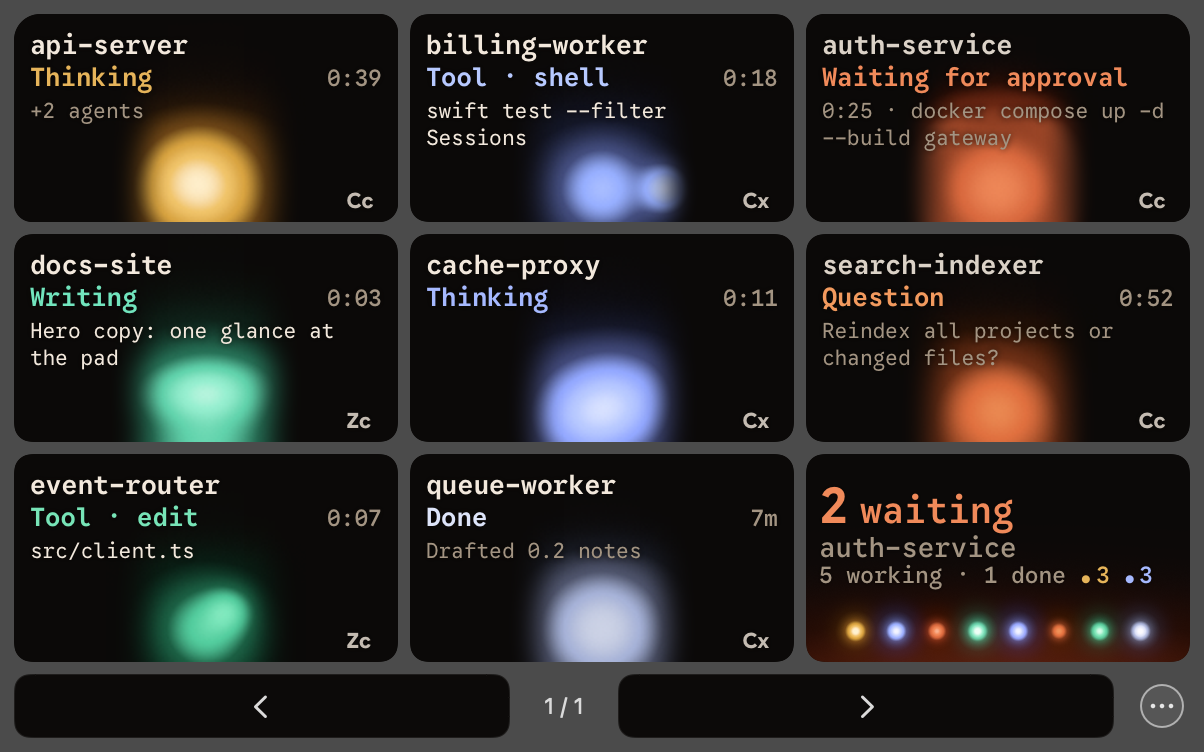
The menu bar popover shows each session as a tile drawn like its key on the keypad, with its title, state, live text and agent glyph over the session's orb, in the keypad's font. It follows the same key order, page, focus, helper and question views. Key 9 shows the same summary as the keypad's hub key, with a dot for each key's state. Clicking uses the same action as tapping that key; holding uses its long-press action. From 0.2.3, clicking a waiting session opens its request details. The two page arrows below the keys change the keypad page too. Extra controls, including keypad ownership and Settings, live in the ellipsis menu. The panel renders at Retina resolution while open, with smaller gaps and five transcript rows. The planned grid remains available when the keypad is disconnected or released to Options+.
From 0.2.3, session squares and keypad secondary lines show relevant qualifiers: Host disconnected with the last seen time, Hooks not received when an installed integration misses a detected active turn, Remote · final text only for remote sources that supply completion text only, or a keypad Answer on computer line. Read-only waits keep their waiting status or tool label above it. Quiet sessions alone do not indicate a hook problem. Waiting and error states stay prominent.
The Mac menu bar popover with sample sessions.
The request panel shows the agent, session, host and all available request text, including commands, paths, questions and options. A source-shortened description is labelled shortened by the agent; use Open in the agent to read its native prompt. Allow, Deny and question answers apply only to the displayed request. Compatible native Codex desktop decisions require the exact current request and an advertised decision. Terminal Codex waits are read-only. A replaced or expired request, remote session, or disabled setting is read-only with Answer on screen.
Ordering is automatic by default. Use a session square’s context menu and choose “Keep on this key” to hold its key and page; “Unpin” restores automatic order. A subtle pin appears on both displays. Other sessions flow around pins, with waiting sessions first among free slots. Key 9 still counts and jumps to every waiting session, including pins and other pages. Pins end with the session or app restart and are never synced or exported.
Keypad
Keypad card: Shows the keypad's state, for example In control or Not connected, with a live preview of its keys. Use Release keypad or Take Over Keypad to switch. Identify shows Orbtile and each key's number on the keys for 2 seconds.
Phone pad: The phone card beside it shows the phone pad as your phone shows it. The phone pad is off by default: sign in, then turn on Phone pad on this card. Phones on this account lists your phones, each with Remove.
Group by: None, Agent, Project or Host. With a grouping, sessions fall into topics: hold the hub key to open the topic picker and switch topics. All shows every session, pages stay inside the topic, and the hub still shows sessions waiting in other topics. Project uses the session's project name, or else its folder; adapters can set it with the project field. With a grouping on, Start in picks the topic Orbtile opens on, and Topic order is Fixed or Waiting first, which puts topics with waiting sessions first each time you open the picker.
Show sessions active in the last: Sets how long idle sessions keep a key. Working and waiting sessions always keep one. Keys sort by state: waiting, working, just finished, then idle. A new wait moves up at once.
Calm down when nothing happens: After 5, 10 or 30 minutes with every session idle, the keypad dims and redraws at 10 frames per second, or choose Never. The next change brings it back.
Press a session key: Selects whether tapping a session key opens its application, marks it as read, or does nothing.
Press an empty key (from 0.3.4): Optional. Pressing a key with no session, on the keypad, phone or popover, opens this link on this computer. Leave blank to do nothing.
Hold a session key: Always opens its focus view on all nine keys after 0.6 seconds. The page buttons move to the next session; the hub key goes back.
While the Mac is locked (While the computer is locked on Windows): Chooses whether keys stay live, show orbs only without text, or turn off while your computer is locked or sleeping.
When the computer sleeps: The keypad goes back to Options+ (if it is installed) and returns on wake. To hand it back from the keypad itself, hold both page buttons for 1.5 seconds.
Appearance
Keypad brightness: Sets the keypad's LCD backlight while Orbtile drives it, from 0.3 to 1. The orbs stay at full intensity. When Orbtile releases the keypad, its previous brightness returns.
Reduce Motion: Orbtile follows the macOS setting.
Colour keys by:Agent or State. Agent gives each agent its own colour. State gives every agent, adapters included, the same four colours, and you can change each one: Done, Working (thinking, tools, writing, starting and compacting), Waiting for you (approvals and questions) and Idle (idle and offline). Error always stays red, and Reset to Default brings back green, yellow, red and grey. Agent icons and badges keep each agent's own colour, and Orbtile Mobile shows the same key colours.
One alarm colour for all agents: Makes every waiting session glow the same alarm colour, whichever agent runs it. With Colour keys by State, this switch is greyed out and waiting keys use your Waiting for you colour.
Agent glyph on keys: None, Initials or App icons. A small mark in the key corner shows which agent runs the session. Initials works for every agent; App icons uses the installed app icons of the built-in agents. From 0.3.4, App icons also covers adapters that send their own icon; the caption reads "Shows app icons, or an adapter's own icon, instead of two-letter badges on the keys, in the popover and on phones."
Agents
Agent enable toggle: Enables or disables tracking for a specific coding agent.
Hue ring: Adjusts the primary colour hue used for an agent's keys and orbs.
Adapter colours (from 0.3.4): An adapter can set its own state colours. Its colour card then shows the Adapter colours badge and says "This adapter sets its own state colours. Drag the hue ring to use one hue for every state. Error always stays red." Each swatch says "Set by this adapter" or "From this adapter's base hue", and Error shows as Error (fixed). After you drag the hue ring, the card says "Using your hue instead of the adapter's state colours." and Use Adapter Colours brings the adapter's colours back.
Report adapter issue: In each agent's header. Opens the feedback window filled in for that agent.
Select the exact ZCode task: On a Mac, on ZCode's page under Keys. A tap on a ZCode key focuses its task through Accessibility; Accessibility Settings… opens the macOS pane. Without the access, the tap just opens the app.
Keypad decisions: Answers this agent's permission requests on the keypad: hold Allow to allow, press Deny to deny. For Claude Code and supported local Codex desktop questions it also lets you pick numbered options, including multiple choice, and hold Send for 0.6 seconds. The on-screen question stays available. From 0.2.15 this is always on for Claude Code, Codex, ZCode and supported adapters; there is no switch. Codex desktop decisions need no hook. See Approve from the keypad.
Build your own: Opens the Adapter API page. Turn on Let your own tools show sessions so your own scripts and agents on this computer can show sessions on the keypad. It is off by default, and each new adapter asks first. The page also has Docs and examples, the discovery file, Regenerate Token, and Copy curl Example to try GET /info.
Show background sessions: On Claude Code's page, under Sessions. Agent runs without a window, scheduled or headless, get keys too. The first time Claude Code runs a background session, Orbtile asks Show background sessions? Choose Show Them or Not Now; you can change it here later.
Remote Hosts
Add Host: Uses an alias from your ~/.ssh/config, such as ubuntudev, to follow Claude Code, Codex and ZCode CLI sessions on that host. SSH uses your existing keys without password prompts. Each session shows its host beside the local sessions; if the connection drops, its key shows offline.
Install Claude Code Plugin: Choose this from the host's menu for remote Claude Code tracking. Start a new Claude Code session after installing.
Remove Claude Code Plugin: Choose this from the host's menu and confirm to uninstall Orbtile's Claude Code plugin and marketplace on that host using its Claude CLI. If Codex or ZCode hooks are installed, their shared event log and enabled marker stay available. Removing it again is safe; failures appear beside the host in Settings.
Install Codex Hooks: Choose this from the host's menu for remote Codex tracking. The host needs Python 3. The installer merges Orbtile's groups into ~/.codex/hooks.json and keeps the first original in ~/.codex/hooks.json.orbtile-bak, plus a private current-install baseline in ~/.codex/hooks.json.orbtile-restore. It writes ~/.local/share/orbtile/remote-agents/orbtile-codex-hook and uses the shared private ~/.local/state/orbtile/events.ndjson log and ~/.local/state/orbtile/spool-enabled marker. Other hooks are kept. On the host, open interactive Codex, enter /hooks, review and trust the 12 Orbtile hooks, then start a new session for hook activity. Recent top-level Codex sessions can also appear when Orbtile connects through its read-only rollout reader. Hooks are enabled by default; a Codex configuration that disables hooks must be changed by you. See the official Codex hooks guide.
Remove Codex Hooks: Restores the current install's original hooks file (or its absence) when untouched; otherwise keeps later user edits and removes only Orbtile's Codex handlers. Removes the helper and restoration record; keeps the first backup and Claude Code's event log. The read-only Codex reader remains available; removing a host from Orbtile stops all tracking of that host without uninstalling its hooks.
Install ZCode CLI Hooks (from 0.2.1): Choose this from the host's menu; the host needs Python 3. The installer merges ~/.zcode/cli/config.json, keeps its first original in config.json.orbtile-bak and its current-install baseline in config.json.orbtile-restore beside it, and writes ~/.local/share/orbtile/remote-agents/orbtile-zcode-hook. It shares the private event log and enabled marker above. Seven lifecycle hooks are supported: SessionStart, UserPromptSubmit, PreToolUse, PermissionRequest, PostToolUse, PostToolUseFailure and Stop. Invalid or dormant foreign hooks, symlinks, read-only config and detected concurrent edits are refused. Avoid editing config during install or removal. Start a new CLI session afterward.
Remove ZCode CLI Hooks: Restores the current install's original config bytes or absence when untouched; otherwise removes its handlers while preserving later user edits and local approval hooks. Removes its helper and restoration record; keeps the first backup and shared spool.
Remote tracking: Codex hooks remain recommended on remote hosts: hosts without Python 3 need them, and remote tool labels and compacting come from hooks. Shows activity, tool labels and title or model when available. Codex discovers recent top-level sessions and updates text as completed assistant messages appear during a turn, using bounded read-only state database and rollout reads over SSH. This is message-level updating, not token streaming. Missing Python 3, unreadable data or unsupported formats leave hook-only tracking available, including final text from Stop. ZCode CLI text appears at completion only when Stop supplies it; its remote stores are not read. Remote sessions are display-only, except Allow for Codex terminal command approvals: answer all other permissions and questions on the host. Remote ZCode desktop workspace stores are not read and do not appear; CLI hook tracking is a separate integration. Codex labels use an explicit sidebar name or the project folder; the initial user prompt is never used as a remote label. Models can come from its state database and rollouts; ZCode supplies them through hooks when available.
Licence
Licence: During the trial, a card shows the days left, with Buy a Licence and Website. When a new version is needed, it shows Update required. On a Mac, enter your key in the Licence block below the card, fill in Name of this Mac, and choose Activate: that activates this computer, one of your 3. The block then lists Computers using this licence, with Check now, Deactivate for each computer, and Deactivate this Mac to give its place back. On a Windows PC, paste your key in the Licence section under the card and choose Activate; it then offers Check Now and Deactivate This Computer. The Microsoft Store version has no Buy a Licence button: get your key at orbtile.com and paste it the same way.
About
About shows the version, with Website and Release notes. Updates live here.
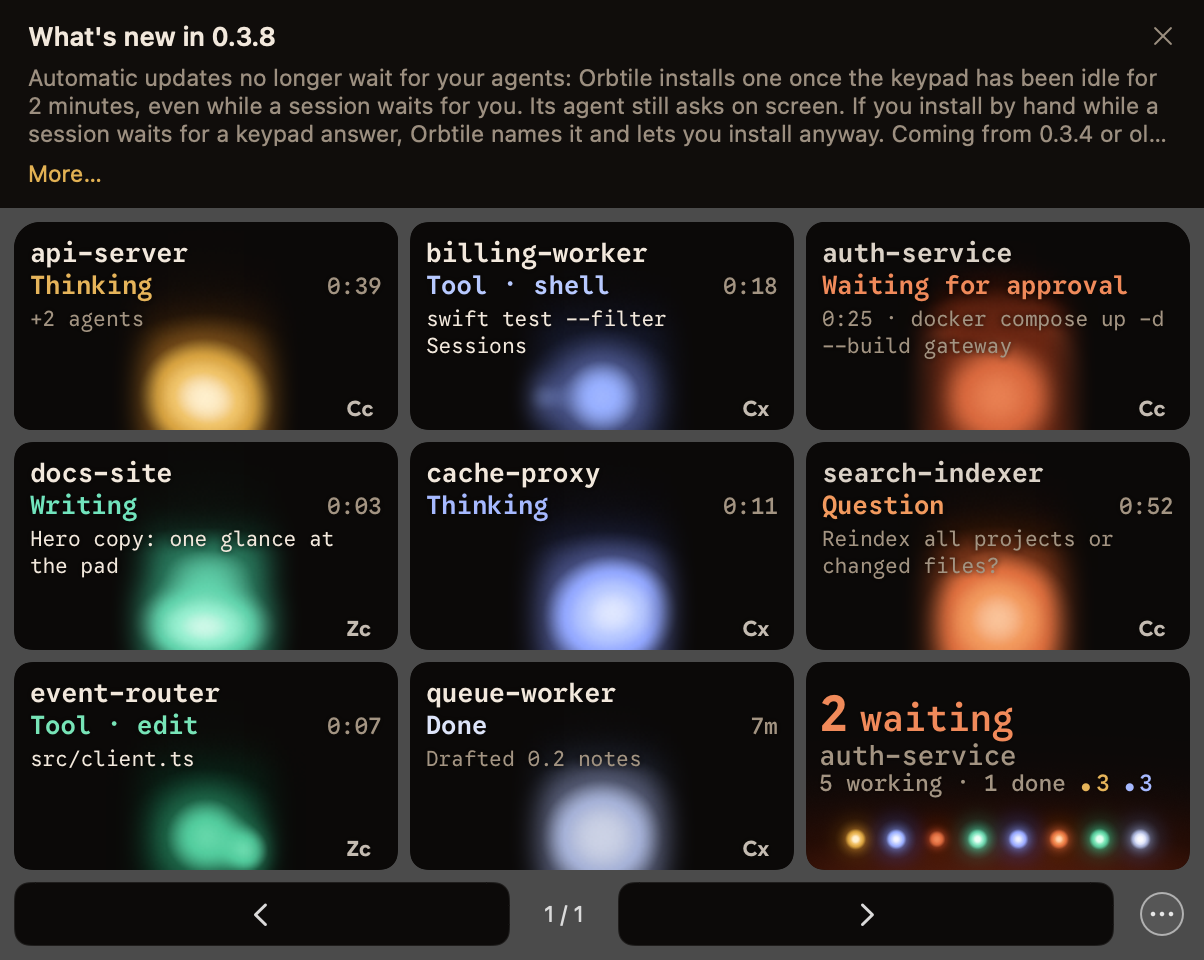
Check for updates automatically: On a Mac, Orbtile checks for verified updates every 4 hours and on wake, and installs one once the keypad has been idle for 2 minutes with no key held, even while a session waits for a keypad answer. On a Windows PC, Orbtile checks automatically and installs an update only when you choose Install and relaunch.
Check now: Shows update progress or the reason a check failed. When an update is ready, choose Install and relaunch here, or Install Update and Relaunch in the Orbtile menu. When an update is ready, Settings shows what the new version changes before you install it, and so does the window that says it is ready. After an error, Open download page remains available.
Usage data: Folded away at the bottom, below Acknowledgements, with the Send usage summary switch.
The Mac menu bar popover after an update, with its What's new note.
Diagnostics
Troubleshooting
Keys show Options+ icons
The keypad displays Logi Options+ icons whenever Orbtile is released or has not taken control over USB.
Click Take Over Keypad in the Orbtile menu bar popover or Settings > Keypad, or press Control-Option-Command-K to regain control.
Live text missing
For Claude Code, if session keys light up but live typewriter text does not stream, the session may have started before the plugin was installed or updated.
Restart the Claude session once in Claude Code after installing or updating the plugin to connect it to the live socket.
Codex waiting and keypad actions
Desktop chats are read from the running Codex app automatically. Orbtile shows a wait when the app asks for an approval or answer, and clears it when the request is gone, including during automatic review. Nothing extra is installed or started. Incompatible app versions show activity only.
In Settings > Agents > Codex > Native waiting, Terminal engine address accepts an existing unix:///absolute/path/to/socket or ws://127.0.0.1:port listener. Blank uses Codex's default CLI control socket, including ordinary terminal sessions that automatically start or attach to the shared daemon. Restart Orbtile after changing the address. Orbtile never starts the server, resumes a thread, changes Codex config.toml or installs a notify program for this signal.
Ordinary codex terminal sessions use the shared daemon by default in 0.159.0. Disabling features.daemon_auto_start or using --no-daemon, --oss, --profile, non-allowlisted command-line config overrides, CODEX_EXEC_SERVER_URL, workload identity, strict/custom config loading or hook-trust bypass can select a private engine; an incomplete Bedrock sign-in also prevents daemon startup. These private engines cannot supply the native signal. For an explicit listener, the terminal UI must use that same server. An operator can run codex app-server --listen ws://127.0.0.1:4500 in one terminal and start new work with codex --remote ws://127.0.0.1:4500 in another. Set that address in Orbtile. This WebSocket transport is experimental and unsupported for production by Codex. Terminal runs excluded from the daemon cannot be attached this way. Desktop chats use the Codex desktop app's local interface, which is separate from this terminal endpoint. Codex exec never asks for command approval in 0.159.0.
Advertised local desktop command decisions can be sent from the keypad. Desktop decisions are bound to the displayed request at key-down and its owning client; each request gets one attempt. Allowed/Denied feedback requires acknowledgement and confirmation that the exact request disappeared from the owner’s state within five seconds. Acknowledgement alone shows neutral Sent; it does not count as a decision. A stale request, unsupported decision or error falls back to Answer on computer. Supported local desktop multiple-choice questions can also receive keypad answers. "Other", unsupported question types and terminal questions use Answer on computer; remote desktop waits remain display-only and must be answered on the host. Codex PermissionRequest hooks return immediately without a decision, including after normal integration repair upgrades an older installation. Terminal waits use half-second status polling during tracked active turns or native waits, and five-second polling otherwise. Terminal command approvals offer Allow on the keys but no Deny, because Codex's terminal prompt has no plain decline: decline in the terminal. Other terminal waits, and approvals when Codex's daemon doesn't answer as Orbtile expects, show Answer on computer; tap to open. Short terminal waits between polls and threads beyond the reader's 96-thread limit can be missed. Disconnect, owner loss or failed reads clear native controls. A malformed conversation drops only its coverage; a protocol version mismatch disables the desktop route. An unchanged pending request keeps its original age through refreshes. Desktop streams are bounded to recently active tracked threads; remote discovered SSH aliases gain display-only coverage only after a matching owner snapshot. Saved desktop connections without a verified host mapping are not covered. Engines neither native reader can reach show activity only.
Codex shows "Needs review"
Codex works with nothing installed. Its optional hooks add a compacting state and slightly earlier updates. Codex displays "Needs review" only when Orbtile hooks are installed in configuration but have not been trusted in Codex preferences.
Open Codex > Settings > Hooks, review the 12 Orbtile hooks, and click trust, then send a prompt to verify the optional hooks are delivering.
Computer locked
When your computer is locked or display sleep begins, Orbtile follows your "While the Mac is locked" setting ("While the computer is locked" on Windows).
In "Orbs only" mode, text clears from the keys for privacy while orb pulses continue.
Fast User Switching suspends keypad rendering because another user owns the computer's console session.
When your computer enters full system sleep, Orbtile hands the keypad back to Logi Options+ (if it is installed).
The app says Update required
Orbtile checks signed status at orbtile.com/beta/status.json. From 0.2.16, a build stops only when that signed status requires a newer version, and Orbtile keeps working if it can’t reach orbtile.com.
Each computer gets a 15-day trial; then a licence keeps Orbtile running: pay what you want from EUR 19 for up to 3 computers, Mac or Windows, or from EUR 39 for the Founder licence, first 1000 only. Licences are on sale now.
While an update is required, Orbtile lets go of the keypad (with Logi Options+ installed, Options+ takes it back) while the menu bar popover stays operational.
Click Download Update in the Orbtile menu or visit the download page to install the latest build.
The trial has ended
During the trial, the Orbtile menu shows how many days are left and Buy a Licence. When the trial ends, the menu shows Trial ended · keypad released: Orbtile lets go of the keypad (with Logi Options+ installed, Options+ takes it back), the phone pad pauses and the session tiles in the popover or tray panel stop. Enter a licence key in Settings > Licence to bring them back.
Subagent count stays high
After you stop a workflow or an agent, its subagent count can stay high for up to 30 minutes, because a stopped agent sends no "finished" event.
Send feedback
Choose Send Feedback… in the Orbtile menu for an idea, complaint or other report, or Report a Bug… for a bug. Email and safe diagnostics are optional; review the full submission before sending. We store your kind, message, optional email and optional diagnostics to answer requests and improve Orbtile. Feedback is kept for 365 days and deleted on the next hourly cleanup run. If delivery fails, a local queued draft retries hourly until accepted. You can also use the website feedback form or email hello@orbtile.com. Feedback messages contain what you type and are stored as submitted; please leave out secrets, personal information and private task text.
Something looks wrong on a key
Something looks wrong on a key? Choose Save Keypad Snapshot in the Orbtile menu (or run open orbtile://snapshot) and send the folder with your report.
Deny and Allow never appear
Recent Claude Code versions start in auto mode, which approves low-risk actions without asking. The keypad only sees the requests Claude Code still asks about. To answer every request on the keypad, switch the session to manual mode (Shift+Tab cycles the modes), or start it with claude --permission-mode manual.
ZCode asks for permission only in a mode that asks before changes, and only conversations started after Orbtile added its keypad hook use the keypad. If an open conversation still shows ZCode's own prompt, start a new one.
For Kimi Code, Deny and Allow appear only for sessions in Kimi's own server, and for up to 2 minutes per request. To answer from the keypad, start kimi web or kimi rc, or type /rc in a Kimi terminal session.
Security
Privacy
Orbtile runs on your computer. It reads only the end of each Claude Code transcript to show the latest words on the key, and automatic reports never send transcripts, prompts or source code. It also reads local Codex thread state and rollout tails, ZCode task state and Kimi Code session files. It sends orbtile.com a small usage summary of counts, minutes, model names and details of unexpected exits under a pseudonymous machine ID at most hourly in 0.2.6 (every two hours in earlier versions) while it runs, only when it changed. The server keeps daily totals and changes by UTC hour of report receipt per pseudonymous computer. A separate signed status check runs at launch, when the computer wakes from sleep and every 4 hours; it carries the pseudonymous machine ID only while usage reports are switched on. Status fetches and installer downloads are counted by UTC hour and version; page-view counters use no tracking cookies. See our privacy notice for the full list and retention periods.