
To approve agent tool calls without switching windows, use two fixes together: allow rules for the commands you always approve, so the agent asks less often, and Orbtile for the prompts that remain. Answer from a key on the Logitech MX Creative Keypad or a tile on an iPhone or Android phone, without leaving your current window.
Ask less often
Claude Code.
- From version 2.1.283, sessions start in auto mode where your model supports it: a separate classifier reviews actions before they run, so routine ones don't ask you at all. Shift+Tab cycles through the modes; accept-edits mode accepts file edits and common file commands without asking.
- When a prompt does come up, "Yes, and don't ask again" remembers a Bash command for that repository.
- Or write allow rules yourself, in
.claude/settings.jsonfor one project or~/.claude/settings.jsonfor all of them./permissionsadds and shows them too:{ "permissions": { "allow": ["Bash(npm run *)", "Bash(git status)"] } }Bash(npm run *)matchesnpm run buildandnpm run test --watch, but notnpm install.
Codex. In ~/.codex/config.toml, approval_policy controls when Codex stops to ask: "on-request" for interactive work, "never" for unattended runs, or a granular table that chooses which kinds of prompts still reach you. sandbox_mode sets what commands can reach: "read-only", "workspace-write" or "danger-full-access".
Keep the rules narrow. A rule for Bash(npm run *) covers your build and test scripts; a rule for every command removes the check you wanted.
Fewer prompts also mean fewer interruptions across a long day. See AI fatigue for developers: why it happens and what helps.
To set up external tools and per-tool approval modes in Codex's config.toml, see Codex MCP servers: setup, CLI, config.toml and OAuth.
To run Codex unattended in scripts and CI pipelines with explicit sandbox and approval flags, see Codex exec non-interactive mode: flags, JSONL and CI setup.
If you want Claude Code to explore the codebase and propose changes before making any edits, see Claude Code Plan Mode: how to use it and approve plans.
For all six modes, their CLI flags, and how allow, ask and deny rules are evaluated, see Claude Code permission modes: settings, flags and rules.
Answer the rest from the keypad
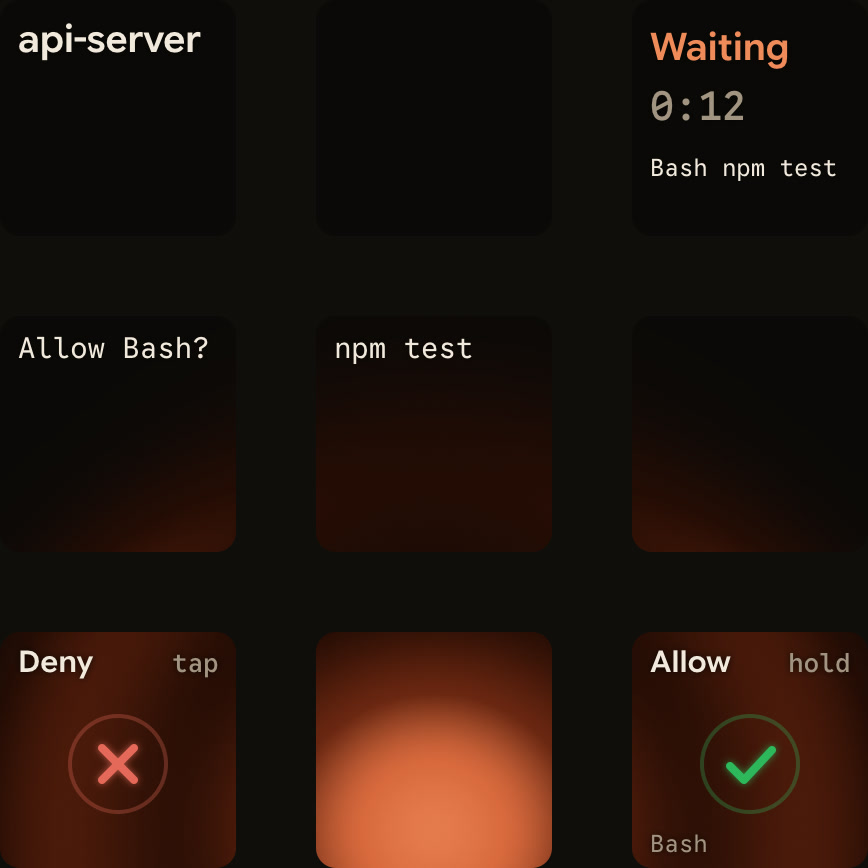
When a session asks for permission, its key on the MX Creative Keypad glows and moves to the front.
- Hold the key to open Focus mode across all nine keys. The request is on the middle keys.
- Press Deny on key 7 once to deny.
- Or hold Allow on key 9 for 0.6 seconds while its ring fills. Letting go early does nothing.
The prompt on screen keeps working, and whichever answers first wins. For Claude Code and ZCode, the keys can answer a permission request for about 25 seconds; after that, answer on screen. A timeout never decides anything, and the keypad refuses decisions while your computer is locked or its displays are asleep.
Questions with options work the same way: the options appear on the keys, you pick them, and you hold Send. See Know when Claude Code asks you a question or wants a plan approved for questions with several answers and plan approvals.
Or from a phone
Orbtile Mobile shows the same request on an iPhone or Android phone. Permission requests get their own decision area, and Allow needs a hold, so a brushed screen never approves anything.
Which requests can be answered
| Agent | From the keypad or phone |
|---|---|
| Claude Code | Permission requests, and questions with up to four options |
| Codex desktop app | Command approvals and single-choice questions |
| Codex in a terminal | Command approvals, Allow only; say no and answer questions on the computer |
| ZCode | Permission requests |
| Antigravity (desktop app) | Questions with numbered options |
Written answers always go on the computer. Claude Code and ZCode CLI sessions on a remote server over SSH show their state, and you answer on the server.
FAQ
Can a key approve something by accident?
No. Allow needs a 0.6-second hold while its ring fills, and a short press does nothing.
Do I still see the prompt on screen?
Yes. Orbtile doesn't replace it. Answer wherever is closer.
Does this work without the keypad?
Yes, with Orbtile Mobile on an iPhone or Android phone.