
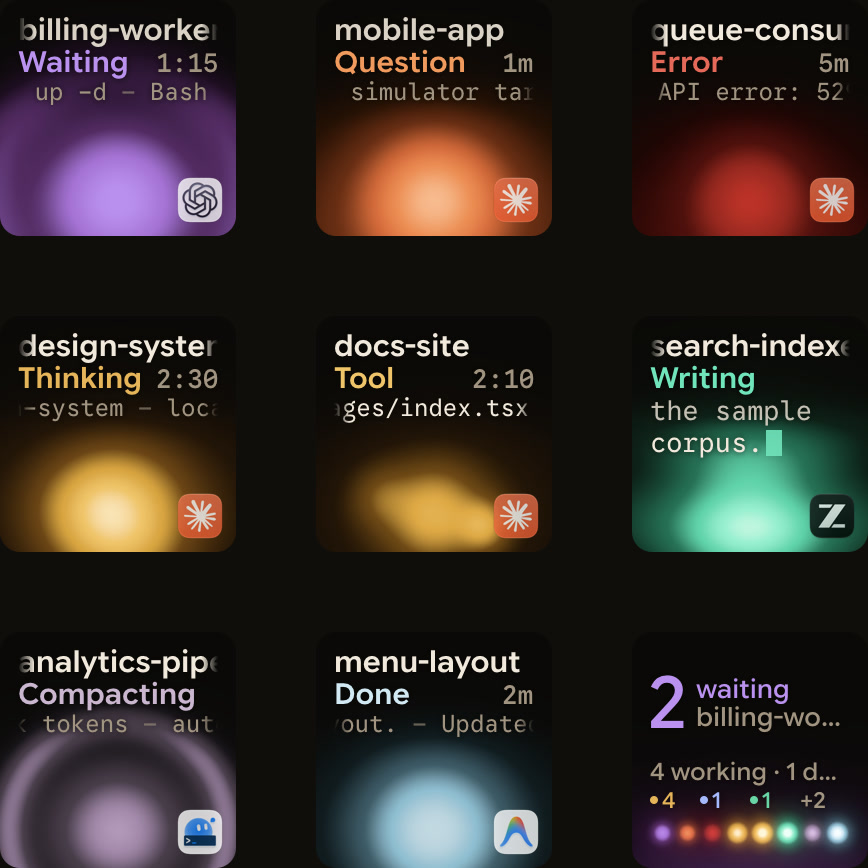
The Logitech MX Keypad ($99.99, in Graphite) gives developers customisable LCD keys. Logi Options+ supports VS Code and IntelliJ integrations, Logi Marketplace plugins and prompt macros for GitHub Copilot, Claude Code and OpenAI Codex. Without Options+, Orbtile drives nine LCD keys and two page buttons over USB as a live coding-agent status pad.
What you get
| MX Keypad | MX Creative Console | |
|---|---|---|
| Controls | Customisable LCD keys | Keypad and dialpad |
| Without Logi Options+ | The keypad cannot be used | The keypad cannot be used; only a very limited set of basic actions on the dialpad |
| Plugin and Marketplace service | Logi Plugin Service | Logi Plugin Service |
| Logi Options+ version | Version 2.07 or later | Version 1.83 or later |
| Supported OS in Options+ | Windows 10+ (not ARM64), macOS 13+ | Windows 10+ (not ARM64), macOS 13+ |
| Configurator languages | English, French, German, Japanese, Italian, Spanish | English, French, German, Japanese, Italian, Spanish |
Logitech makes the MX Keypad with recycled plastic and supports it alongside the MX Creative Console in Logi Options+. While Logi Options+ supports 19 languages across other Logitech hardware, the configurator for the MX Keypad and MX Creative Console currently supports six: English, French, German, Japanese, Italian and Spanish. The Logi Plugin Service manages the system behind both devices, including all plugins and the Logi Marketplace.
Logitech's plugin documentation also refers to the keypad as the MX Creative Keypad. The Logi Plugin Service activates only when you connect the MX Creative Console or the MX Keypad to your computer. Older Logitech utilities such as Logitech Options, SetPoint, Unifying Software, Logitech Control Center and the Firmware Update Tool are no longer supported. Logitech recommends Logi Options+ for supported devices instead.
With Logi Options+: actions for the app in front
Logi Options+ assigns actions to the customisable LCD keys and swaps tools when you switch apps. Logitech sells the MX Keypad as "AI control keys for developers", with native integrations for VS Code and IntelliJ alongside one-tap controls for GitHub Copilot, Claude Code and OpenAI Codex.
- IDE controls for VS Code and IntelliJ: native integrations let you navigate code, launch agents, manage debuggers and toggle terminals from the LCD keys.
- AI prompt macros and commands: execute prompt macros, refactor code and launch voice commands across GitHub Copilot, Claude Code and OpenAI Codex.
- AI provider requirements: third-party AI features require an active internet connection and an account with each respective provider.
- GitHub Copilot Pro+ offer: the MX Keypad product page includes a 3-month GitHub Copilot Pro+ offer.
- App-aware context switching: the MX Keypad detects your active app and swaps tools as you move between apps such as VS Code, Slack and Figma.
- Ready-to-use profiles: most plugins ship with ready-to-use profiles for use out of the box, and customisation requires the Logi Options+ app.
- Logi Actions SDK: developers can build custom tools with the Logi Actions SDK, by hand or with AI, and share them on the Logi Marketplace.
Each plugin covers its own tool, and they all run inside Options+. For how Logitech's Claude plugin in Options+ compares with Orbtile, see Orbtile and Logitech's Claude plugin, compared.
For the full console's dialpad controls, profile imports and application plugin requirements in Logi Options+, see MX Creative Console: setup, profiles, plugins and agents.
For a three-way hardware and workflow comparison, read MX Creative Keypad vs Loupedeck vs Stream Deck for developers.
Using the MX Keypad with Claude Code and developer tools
Logitech lists Claude Code, GitHub Copilot, OpenAI Codex, VS Code and IntelliJ on the MX Keypad product page, alongside tools such as Zoom, Figma, Slack, Spotify and Adobe Creative Cloud. Anthropic's documentation says Claude Code is available in your terminal, IDE, desktop app and browser. Its IDE support covers VS Code and JetBrains IDEs including IntelliJ, PyCharm and WebStorm.
In Claude Code, you can isolate parallel sessions in separate git worktrees with the --worktree flag, or dispatch and manage many sessions from one screen with agent view. Claude Code Desktop also supports parallel sessions with Git isolation, an integrated terminal and file editor, and visual diff review.
In the Claude Code CLI, you can resume and switch conversations with --continue, --resume, --from-pr or the /resume picker. You can configure a custom status bar to monitor context window usage, costs and git status. You can also set up a terminal bell when Claude finishes, or continue a local Claude Code session from a phone, tablet or browser using Remote Control with claude.ai/code and the Claude mobile app.
| Tool or surface | What Logitech and Anthropic document |
|---|---|
| Claude Code, GitHub Copilot and OpenAI Codex | Execute prompt macros, refactor code and launch voice commands from the MX Keypad in Logi Options+ |
| VS Code and IntelliJ | Native MX Keypad integrations to navigate code, launch agents, manage debuggers and toggle terminals |
| Claude Code CLI | Switch permission modes with Shift+Tab, customise shortcuts in a keybindings configuration file, or use hold-to-record or tap-to-record voice dictation |
| Claude Code in VS Code and JetBrains | Inline diffs, @-mentions, plan review and keyboard shortcuts in VS Code, plus JetBrains IDE integration |
| Claude Code hooks | Run shell commands automatically when Claude Code edits files, finishes tasks or needs input |
| Zoom, Discord, MS Teams and OBS Studio | Supported application versions: Zoom v6.X onwards (v6.6.0 for haptics), Discord's latest version, New Teams App 24165.x onwards and OBS Studio 30.0 onwards |
In Logi Options+, you can use the default profile and all pre-installed System plugin actions without signing in. To log in with a Logi ID, click the Account icon in the top-right corner of the main app. Options+ also prompts you to log in at these points:
- Logi Options+ prompts you to log in during the Device Feature tour.
- It prompts you when you click the
INSTALLbutton on any profile or plugin in the Marketplace. - It prompts you when you add a new profile for an application.
A Logi ID is needed to download other plugins or install other application profiles.
To change the Logi Options+ language, click the Settings gear icon in the top-right corner of the Logi Options+ home page and select your language from the dropdown menu. The change applies immediately.
Plugins and custom shortcut profiles in Logi Options+
In Logi Options+, plugins are packages that group actions for a specific application or feature into groups and subgroups in the right panel. Every application plugin you install includes a default profile for that app, while web-service plugins such as Spotify, Philips Hue, Twitch and IFTTT run without a local app installed.
When you create a new profile for an application in Logi Options+, the corresponding plugin is installed automatically if one is available so you can access its actions. Logitech notes that some default profiles may not be available in the Marketplace yet.
To find, update and verify plugins in Logi Options+:
- Browse the Marketplace: in your device configuration page, click
All Actionsto open thePLUGIN SECTION, then selectFIND MORE FROM MARKETPLACE. - Check for updates: a pulsating purple dot appears next to a plugin with an update, and selecting it shows the update option.
- Verified Marketplace plugins: since Logi Options+ version 1.99, every plugin on the official Logitech Marketplace undergoes a security review.
- Third-party plugins: you can still install plugins from other sources, and Options+ displays a security notification about unverified software risks.
If your code editor, terminal or developer tool does not have a plugin in the Marketplace, you can configure an application profile manually and map keyboard shortcuts to the keypad:
- Click the
+icon on the profile bar and chooseAPPLICATION PROFILE. - Select your application from the list, or scroll down and click
ADD APPLICATIONto point to its executable file. - Click
START WITH A BLANK TEMPLATE, give the profile a name and clickCONFIRM. - In the right panel, click
ALL ACTIONSand select the pre-installedSYSTEMplugin. - Drag
KEYBOARD SHORTCUTunderKEYBOARDonto a key, click theKEYfield to record your shortcut, and clickSave.
If you use the MX Creative Console dialpad alongside the keypad, drag DIAL ADJUSTMENT under ADVANCED in the SYSTEM plugin onto the dial. Select an initial shortcut to run before the adjustment. Then choose a separate keyboard shortcut for each turning direction. Some application plugins might not be available, depending on your active profile. On a Photoshop profile, for example, you can only use the Photoshop plugin, and plugins for Premiere Pro might not be available.
Coding agents and why developers run the keypad without Options+
In Logi Options+, each Marketplace plugin covers its own app, terminal or service, and the keypad swaps tools to match your active app. For how Claude Code lifecycle hooks work, see Claude Code hooks: events, matchers, settings and handlers.
With Logitech's own software, the MX Keypad's actions follow the app in front, and Logitech's support documentation says the keypad cannot be used without Logi Options+. If you run several coding-agent sessions across terminals, desktop apps and remote servers, you may want the nine LCD keys to show live status from every session at once rather than shortcuts for whichever window is in front.
With Orbtile: live state from your coding agents
Orbtile takes over the keypad directly over USB, without a plugin inside Options+, and shows your coding agents across its keys:
- Keys 1 to 8 show one Claude Code, Codex, ZCode, Antigravity or Kimi Code session each, with its state and latest words.
- A session that needs you moves to the front, and a tap on key 9 jumps straight to it.
- In Focus mode, press Deny on key 7 or hold Allow on key 9 for 0.6 seconds to answer supported permission requests.
- Supported multiple-choice questions put options on keys 1, 2, 3 and 7, and you hold Send on key 9.
- Sessions on remote SSH servers appear next to your local sessions on the same keypad.
A tap on a key opens that session's window; a hold opens its focus view across all nine keys.
Orbtile runs on a computer with macOS 14.0 Sonoma or later on Apple silicon, or Windows 11 (x64), and needs no account to drive the keypad. Install its Claude Code plugin in Settings > Agents > Claude Code on a Mac, or with its Install button on Windows. For Antigravity, it follows conversations in the Antigravity desktop app and answers up to four questions with two to four numbered choices each; Antigravity CLI and IDE sessions do not appear, and permissions stay on your computer. For Codex, compatible local desktop chats support Allow, Deny and multiple-choice questions, while terminal command approvals offer Allow on the keys and decline in the terminal. Remote SSH sessions are display-only, except Allow for Codex terminal command approvals: you answer all other permissions and questions on the host.
For Kimi Code, Orbtile reads session files from ~/.kimi-code (%USERPROFILE%\.kimi-code on Windows). To answer from the keypad, start kimi web or kimi rc, or type /rc in a Kimi terminal session. A Kimi Code permission request takes keypad answers for up to 2 minutes, or less if Kimi Code's own limit is shorter. Your own scripts and tools can also report session state to the keypad through Orbtile's local Adapter API.
Use both
Options+ stays installed. While Orbtile has the keypad, your Options+ profile for it pauses, and it comes back straight away when you quit Orbtile, choose Release keypad in Orbtile's menu, or hold both page buttons for 1.5 seconds. On a Mac, the dialpad keeps working with Options+ the whole time. The setup, on a Mac and on Windows, is in Use the Logitech MX Creative Keypad without Logi Options+.
Which one when
| You want | Use |
|---|---|
| Shortcuts and macros for your editor or terminal | Logi Options+ |
| Prompt macros, code refactoring and IDE actions in VS Code or IntelliJ | Logi Options+ with Marketplace or System plugins |
| Custom plugins built for your team's workflow | Logi Actions SDK in Logi Options+ |
| Every agent session in one view, including terminals and servers | Orbtile |
| Both through the day | Orbtile, handing the keypad back to Options+ when you want your shortcuts |
FAQ
Is the MX Keypad the same as the keypad in the MX Creative Console?
Yes. The MX Creative Console adds a dialpad to the keypad, and Logitech covers both in one configurator in Logi Options+. The standalone MX Keypad requires Logi Options+ version 2.07 or later, while the MX Creative Console bundle requires version 1.83 or later.
How do I use the MX Keypad with an editor or terminal that has no Marketplace plugin?
In Logi Options+, click the plus icon on the profile bar, create an Application Profile from a blank template for your program, and use the pre-installed System plugin to assign Keyboard Shortcut actions to the keys.
Do I lose my Options+ setup?
No. Options+ keeps your profiles; they pause while Orbtile holds the keypad and come back when you hand it over.
Can I use a phone instead?
Yes. Orbtile Mobile turns an iPhone (iOS 17 or later) or Android phone (Android 8.0 or later) into the same status pad over your local network.