
Google Gemini CLI (gemini) is an open-source, Apache-2.0 licensed terminal agent. Google now maintains it for enterprise Gemini Code Assist workflows on Google Cloud. Free individual access and Google AI Pro and Ultra moved to Antigravity CLI (agy) on 18 June 2026. To set up Gemini CLI, install Node.js 20.0.0 or later and run npm install -g @google/gemini-cli or brew install gemini-cli. Then sign in with Google, a Gemini API key or Vertex AI, and add GEMINI.md context files, MCP servers and TOML policies.
Gemini CLI vs Antigravity CLI and Gemini API CLI
The google-gemini/gemini-cli repository names three command-line tools:
| Tool | Command | What it is | Who it is for |
|---|---|---|---|
| Gemini CLI | gemini | Terminal coding agent, not tuned for the Gemini 4 series such as Gemini 4 Argon | Organisations with Gemini Code Assist Standard or Enterprise, or Code Assist for GitHub, on Google Cloud, plus legacy paid API or Vertex keys |
| Antigravity CLI | agy | Interactive multi-agent coding terminal | Free individual access and Google AI Pro and Ultra (Google One), which moved here on 18 June 2026 |
| Gemini API CLI | gemini-api | Stateless API CLI, not a coding harness | Agents, scripts and CI that need direct commands for Gemini models |
The repository also asks you not to use Gemini CLI to benchmark Gemini models. For the agy terminal client, see Google Antigravity CLI: commands, settings and permissions and Google Antigravity vs Claude Code: what's the difference.
System requirements and installation
Gemini CLI comes pre-installed on Cloud Shell and Cloud Workstations. For your own computer, Google recommends:
- macOS 15+, Windows 11 24H2+ or Ubuntu 20.04+.
- 4GB+ RAM for casual use, and 16GB+ RAM for long sessions and large codebases.
- Node.js 20.0.0+ with Bash, Zsh or PowerShell.
- An internet connection in a Gemini Code Assist supported location.
Install it globally, or run it without installing:
npm install -g @google/gemini-cli     # npm
brew install gemini-cli               # Homebrew (macOS/Linux)
sudo port install gemini-cli          # MacPorts (macOS)
npx @google/gemini-cli                # run without installing
For restricted environments, create an Anaconda environment and install inside it:
conda create -y -n gemini_env -c conda-forge nodejs
conda activate gemini_env
npm install -g @google/gemini-cli
Release channels
Gemini CLI publishes three npm channels:
- Stable (
@latest) ships weekly on Tuesdays at 20:00 UTC, built from the previous week's preview plus bug fixes. - Preview (
@preview) ships weekly on Tuesdays at 23:59 UTC and may contain regressions. - Nightly (
@nightly) ships daily at 00:00 UTC with all changes from the main branch.
Install a channel with, for example, npm install -g @google/gemini-cli@preview. Run gemini update to update to the latest version.
Authenticate with Google, a Gemini API key or Vertex AI
| Who you are | Method | Google Cloud project |
|---|---|---|
| Individual Google account | Sign in with Google | Usually not needed |
| Company, school or Google Workspace account | Sign in with Google | Required |
| Google AI Studio key holder | Use Gemini API key | Not needed |
| Vertex AI user | Vertex AI | Required |
| Headless runs with no cached sign-in | Gemini API key or Vertex AI | Only for Vertex AI |
Sign in with Google
Run gemini and select Sign in with Google. A sign-in prompt opens in your web browser. You also need a Google Cloud project if you use a company, school or Workspace account. The same applies to a Gemini Code Assist licence from the Google Developer Program or a Code Assist subscription. Gemini CLI checks GOOGLE_CLOUD_PROJECT first, then falls back to GOOGLE_CLOUD_PROJECT_ID:
export GOOGLE_CLOUD_PROJECT="YOUR_PROJECT_ID"   # macOS/Linux
$env:GOOGLE_CLOUD_PROJECT="YOUR_PROJECT_ID"     # Windows PowerShell
Use a Gemini API key or Vertex AI
For an API key, get a key from Google AI Studio and set it as GEMINI_API_KEY. Then run gemini and select Use Gemini API key.
For Vertex AI, set GOOGLE_CLOUD_PROJECT and GOOGLE_CLOUD_LOCATION, then choose one of three options:
- Unset
GOOGLE_API_KEYandGEMINI_API_KEY, then rungcloud auth application-default login. - Point
GOOGLE_APPLICATION_CREDENTIALSat the absolute path of a service account key that has theVertex AI Userrole. - Set
GOOGLE_API_KEYto a Google Cloud API key, unless your organisation restricts API keys.
In Cloud Shell, Gemini CLI typically signs in with your Cloud Shell credentials. On Compute Engine, it uses Application Default Credentials from the metadata server.
To keep these variables, add them to your shell profile or a .gemini/.env file. Gemini CLI searches upward from the current folder, then checks ~/.gemini/.env. It loads the first file it finds and does not merge them.
CLI flags, model aliases and interactive commands
gemini                                   # interactive session
gemini -i "What is this project for?"    # run a prompt, then stay interactive
gemini -p "Summarise the README"         # one non-interactive query
gemini -r "latest"                       # resume the most recent session
gemini -m flash --include-directories ../shared| Flag | Alias | Default | What it does |
|---|---|---|---|
--prompt | -p | None | Appends the prompt to piped input and forces non-interactive mode |
--prompt-interactive | -i | None | Runs the prompt, then continues interactively |
--model | -m | auto | Picks a model alias or model name |
--resume | -r | None | Resumes "latest" or a session by index number |
--list-sessions | None | None | Lists sessions for the current project and exits |
--worktree | -w | None | Starts in a new Git worktree, if experimental.worktrees is true |
--sandbox | -s | false | Runs in a sandboxed environment |
--approval-mode | None | default | Sets default, auto_edit, yolo or plan |
--skip-trust | None | false | Trusts the current workspace for this session |
--include-directories | None | None | Adds extra folders to the workspace |
--output-format | -o | text | Outputs text, json or stream-json |
--debug | -d | false | Turns on verbose debug logging |
The model aliases are:
autois the default and usesgemini-3-pro-previewwhen preview features are on, orgemini-2.5-prootherwise.protargets complex reasoning, with the same choice betweengemini-3-pro-previewandgemini-2.5-pro.flashusesgemini-2.5-flash, a fast, balanced model for most tasks.flash-liteusesgemini-2.5-flash-lite, the fastest option for simple tasks.
Slash commands, @ files and ! shell commands
@pathinjects a file's contents into your prompt, skipping git-ignored files by default.!commandruns a shell command inbashon macOS and Linux, or PowerShell on Windows.- Typing
!on its own toggles shell mode. /planswitches to read-only Plan Mode and shows the current plan./resume(or/chat) opens the session browser and manages saved checkpoints./rewind, or pressingEsctwice, steps back through the conversation./restoreputs project files back as they were before a tool ran, if checkpointing is set up./compressreplaces the chat context with a summary./clearstarts a new session.
Settings and GEMINI.md context files
Gemini CLI applies settings in seven layers. Each layer overrides the ones before it:
- Hardcoded defaults.
- A system defaults file, such as
/etc/gemini-cli/system-defaults.jsonon Linux. - User settings in
~/.gemini/settings.json. - Project settings in
.gemini/settings.jsonin the project root. - A system settings file, such as
/etc/gemini-cli/settings.jsonon Linux, which overrides all other settings files. - Environment variables, including those loaded from
.envfiles. - Command-line arguments.
String values in settings.json can reference environment variables as $VAR_NAME, ${VAR_NAME} or ${VAR_NAME:-DEFAULT_VALUE}.
GEMINI.md context files
Context files use the default name GEMINI.md. Gemini CLI loads them from three places:
- The global file at
~/.gemini/GEMINI.md. - Your workspace folders and their parent folders.
- Any folder a tool accesses, plus its parents up to a trusted root.
Run /init to generate a starter context file for the current folder. Use /memory list to see the files in use, /memory show to see the combined content, and /memory refresh to reload them. Inside a GEMINI.md file, import other files on their own line, such as @./components/instructions.md.
To load AGENTS.md or other names too, set context.fileName:
{
  "context": {
    "fileName": ["AGENTS.md", "CONTEXT.md", "GEMINI.md"]
  }
}
Set up MCP servers
Gemini CLI supports three Model Context Protocol transports:
- Stdio starts a local program set with
command. - SSE connects to a remote endpoint set with
url. - Streamable HTTP connects to an endpoint set with
httpUrl.
Manage servers with gemini mcp. It writes to project settings by default, or to user settings with --scope user:
gemini mcp add --transport http --header "Authorization: Bearer abc123" secure-http https://api.example.com/mcp/
gemini mcp list
gemini mcp remove secure-http
You can also define servers under mcpServers in settings.json. To limit which servers can run, list names in mcp.allowed or mcp.excluded. Points to know:
- Gemini CLI hides environment variables matching patterns such as
*TOKEN*,*SECRET*and*KEY*from MCP servers. - To pass a secret to a server, declare it in that server's
envblock. - Each request times out after 600,000 ms (10 minutes) by default.
- Tools are named
mcp_{serverName}_{toolName}, so do not use underscores in server names. - Run
/mcp authto sign in to an OAuth server, and Gemini CLI stores the tokens in~/.gemini/mcp-oauth-tokens.json. - Reference a server's resources with
@server://resource/path, and run its prompts as slash commands.
Approvals, policies, trusted folders and sandboxing
--approval-mode sets how Gemini CLI handles tools:
defaultasks before most write tools run.auto_editmay auto-approve some write tools for code editing.planis a strict, read-only mode for research and design.yoloauto-approves every tool, so use it with great care.
For finer control, put .toml rules in ~/.gemini/policies/. Administrators can use a system folder such as /etc/gemini-cli/policies on Linux. Policies in a workspace's .gemini/policies folder have no effect.
[[rule]]
toolName = "run_shell_command"
commandPrefix = "git"
decision = "ask_user"
priority = 100
Each rule matches fields such as toolName, mcpName, commandPrefix or argsPattern. It then decides allow, deny or ask_user, with a priority from 0 to 999. In non-interactive runs, ask_user counts as deny.
Trusted folders
Folder trust is off by default. Turn it on with "security": { "folderTrust": { "enabled": true } } in your user settings.json. Gemini CLI saves your choices in ~/.gemini/trustedFolders.json, and /permissions changes them. In an untrusted folder, it skips project settings and .env files and does not connect MCP servers. It also always asks before a tool runs. Headless runs in an untrusted folder exit with FatalUntrustedWorkspaceError unless you pass --skip-trust or set GEMINI_CLI_TRUST_WORKSPACE=true.
Sandboxing
Turn on the sandbox with -s, the GEMINI_SANDBOX variable or tools.sandbox in settings.json. The methods are:
- macOS Seatbelt uses
sandbox-exec, and its defaultpermissive-openprofile limits writes to the project folder. - Docker or Podman isolates processes in containers on any platform.
- Windows Native Sandbox sets integrity levels on the files the sandbox writes to.
- gVisor (
runsc) on Linux runs containers on a user-space kernel, and you must choose it explicitly. - LXC/LXD on Linux is experimental and runs in a container you create beforehand.
Headless mode for scripts and CI
Gemini CLI runs headless when you pass -p or run it outside a terminal:
gemini -p "Explain the architecture of this codebase" --output-format jsonjson returns one object with response, stats and an optional error. stream-json emits JSONL events: init, message, tool_use, tool_result, error and result. Exit codes are 0 for success, 1 for a general or API error, 42 for invalid input and 53 when the turn limit is exceeded.
Watch Gemini CLI and other coding agents on a keypad or phone with Orbtile
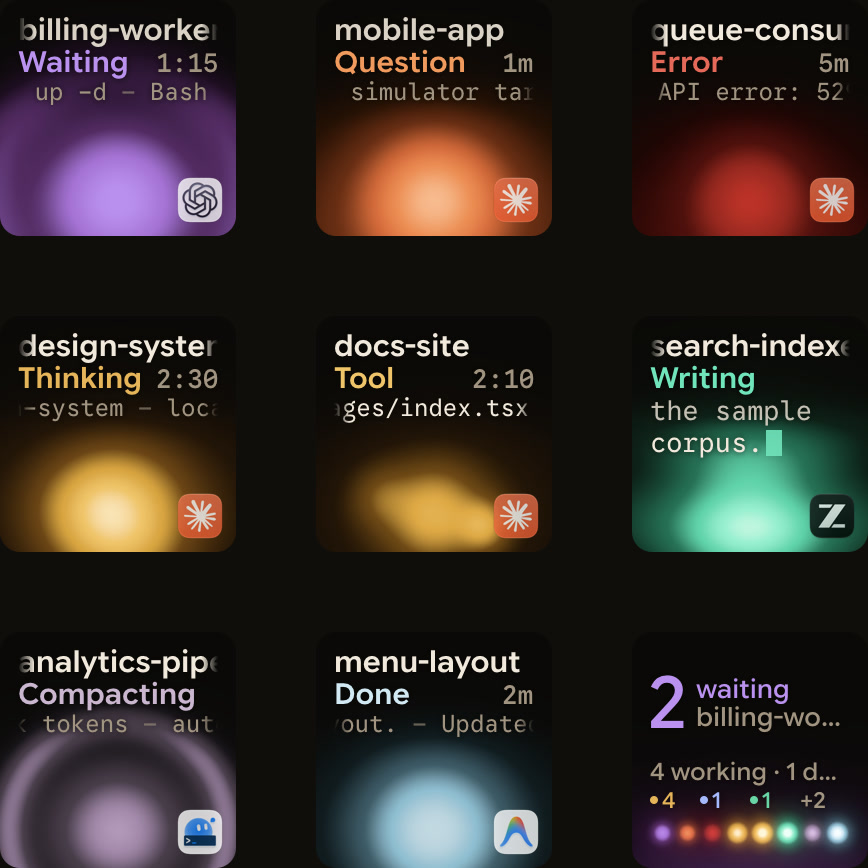
Orbtile shows coding-agent sessions on the nine LCD keys and two page buttons of a Logitech MX Creative Keypad, over USB without Logi Options+. It can also show them on an iPhone (iOS 17+) or an Android phone (Android 8.0+) with Orbtile Mobile. It runs on a computer with macOS 14.0 Sonoma or later on Apple silicon (M1 or later), or a Windows 11 PC (x64).
Built-in support covers Claude Code, Codex, ZCode, Antigravity and Kimi Code. Gemini CLI is not a built-in agent, so its sessions do not appear automatically. You can show Gemini CLI runs through Orbtile's local Adapter API:
- In Orbtile, open
Settings > Agents, chooseBuild your ownand turn onLet your own tools show sessions. - On a Mac, put
examples/ref-shell.shfrom the open-sourceOrbtile/orbtile-adapterskit in front of a headlessgemini -pcommand. - The key shows the command while it runs, then Done when it succeeds or Error with the exit code when it fails.
- For your own scripts, the
@orbtile/adapterpackage (Node 20+) andorbtile-adapterpackage (Python 3.10+) report states such as thinking, tool and done. - The first time an adapter registers, allow it in
Settings > Agentsso its sessions appear. - Adapters that declare the capabilities can also receive taps, Allow and Deny decisions, and question answers from the keys.
See Show any script or agent on a keypad with the Orbtile Adapter API and Approve agent tool calls without switching windows for step-by-step examples.
FAQ
What is the difference between Google Gemini CLI and Antigravity CLI?
On 18 June 2026, free individual access and Google AI Pro and Ultra moved to Antigravity CLI, which uses the agy command. Gemini CLI uses the gemini command. Google maintains it for organisations with Gemini Code Assist Standard or Enterprise, or Code Assist for GitHub, on Google Cloud, plus legacy paid API and Vertex keys.
How do I install and authenticate Google Gemini CLI?
Install Node.js 20.0.0 or later, then run npm install -g @google/gemini-cli or brew install gemini-cli. Start it with gemini. Then sign in with Google in your browser, use a GEMINI_API_KEY from Google AI Studio, or set GOOGLE_CLOUD_PROJECT and GOOGLE_CLOUD_LOCATION for Vertex AI.
Where does Google Gemini CLI load settings, GEMINI.md files and MCP servers?
User settings live in ~/.gemini/settings.json and project settings in .gemini/settings.json. Environment variables and command-line flags override them. GEMINI.md files load from ~/.gemini/GEMINI.md, your workspace and its parent folders, and folders that tools access. MCP servers go under mcpServers in settings.json, or you can manage them with gemini mcp add, list and remove.
Does Orbtile support Google Gemini CLI sessions?
Gemini CLI is not a built-in agent in Orbtile, so its sessions do not appear automatically. Turn on the local Adapter API under Settings > Agents. Then wrap a headless gemini command with the reference shell adapter on a Mac, or report states from your own script with the Node or Python package.